 Learn Me AI
Find the Exact Passage: Semantic Search Across Your Whole Knowledge Base
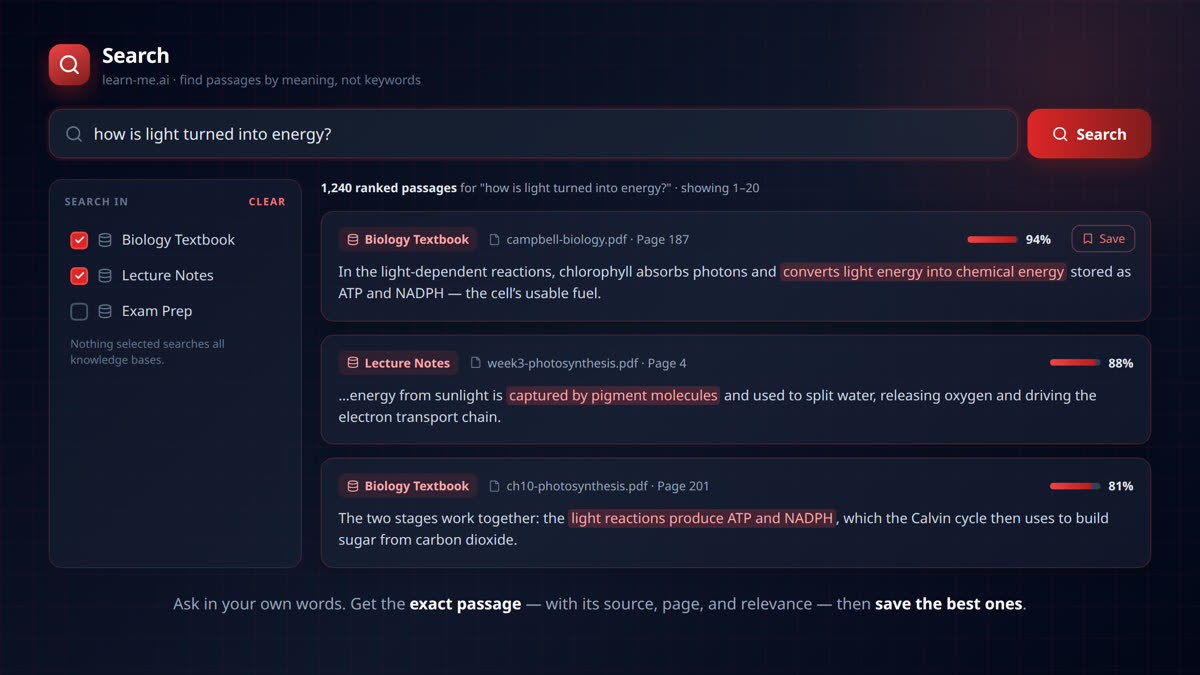
You remember reading it — the exact point you need is somewhere in your documents. But when you search for it, keyword search comes up empty, because the book didn’t use your words. You typed “how is light turned into energy,” and the textbook said “the light-dependent reactions convert light energy into chemical energy.” Same idea, zero matching keywords, no result.
learn-me.ai’s Search works differently. It’s semantic search across your knowledge bases — it finds passages by meaning, not just matching words. Ask in plain language and it surfaces the exact passage you were thinking of, even when the wording is completely different.
Search by meaning, not keywords
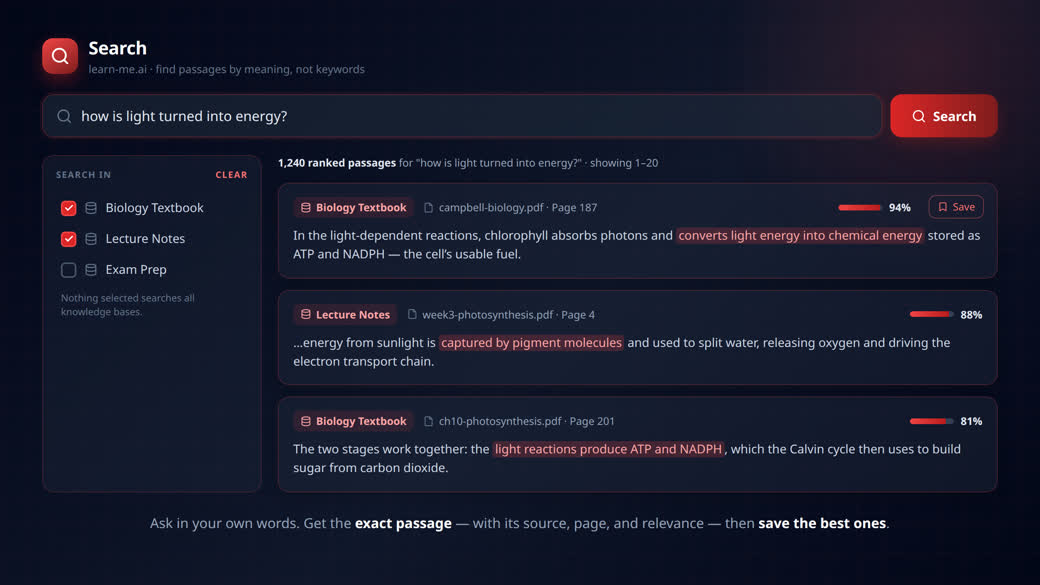
Type a question or a phrase the way you’d actually say it. Behind the scenes, Search reads the intent of your query and matches it against the meaning of every passage in your sources — a hybrid of vector (semantic) and keyword search. So a query like “how is light turned into energy?” pulls back:
“In the light-dependent reactions, chlorophyll absorbs photons and converts light energy into chemical energy stored as ATP and NADPH…”
(Biology Textbook · campbell-biology.pdf · Page 187 · 94% relevance)
No exact words in common — but it’s exactly the passage you wanted.
Every result is a real, cited passage
You don’t get a vague list of files — you get the actual ranked passages, each with:
- The knowledge base and source file it came from
- The page number (or range)
- A relevance score so the strongest matches sit at the top
- Your query terms highlighted in the snippet
Click any result and it opens the source — PDFs jump straight to the cited page, so you land exactly where the answer lives. It’s grounded and verifiable, never a guess.
Ranked, filtered, and free of junk
Big libraries are noisy. Search handles that for you:
- Cross-encoder reranking re-orders the candidates so the most relevant passages come first — not just the ones with matching keywords.
- A relevance floor drops weakly-related passages, so you’re never paginating through filler.
- Junk filtering quietly skips things like page headers, tables of contents, and index fragments.
The result is a clean, ranked list where the top few passages are usually all you need.
Search everything — or narrow it down
By default, Search looks across all your knowledge bases at once. When you want to focus, the “Search in” panel lets you pick specific knowledge bases — or expand one and check individual documents. Searching two textbooks but not your rough notes? Two clicks.
Save the passages worth keeping
Find something you’ll want again? Hit Save on any result. Saved passages go into folders under a project — a personal, organized library of references. Each saved item keeps its quoted text, source, page, and an optional note about why it mattered — and reopens at the exact page whenever you need it. It’s the difference between “I read that somewhere” and “here it is, page 187, saved in my Thesis folder.”
Try it on your own sources
Add your documents to a knowledge base, open Search, and ask a question the way you’d ask a person. You’ll get the exact passage — cited, ranked, and ready to save.
Frequently asked questions
What is semantic search?
Semantic search finds results by meaning rather than exact keyword matches. It understands that “how is light turned into energy” and “converting light energy into chemical energy” are about the same thing, so it surfaces the right passage even when no words overlap.
Does it search the web or just my documents?
It searches your own knowledge bases — the documents, PDFs, notes, and sources you’ve added. Every result is grounded in your material, with a citation you can verify.
Do results include page numbers and citations?
Yes. Every passage shows its knowledge base, source file, page number, and a relevance score, and clicking a PDF result jumps straight to that page.
What are “Saved sources”?
Saved sources are search results you’ve bookmarked into folders under a project — with the quoted passage, its source and page, and an optional note. It’s a personal citation library you can reopen anytime at the exact page.
Can I limit the search to specific documents?
Yes. Use the “Search in” panel to search everything, a few knowledge bases, or hand-picked individual documents.
Try Learn Me AI free
Turn your PDFs, audio, web pages and YouTube videos into one AI you can chat with — get cited answers and publish the result. No credit card needed.
Get started free →Keep reading
Learn Me AI vs NotebookLM: Which Research Tool Actually Ships Your Work?
Learn Me AI vs NotebookLM — both chat with your sources and cite answers, but Learn Me AI writes and edits full documents, then publishes and exports them. A hands-on comparison.
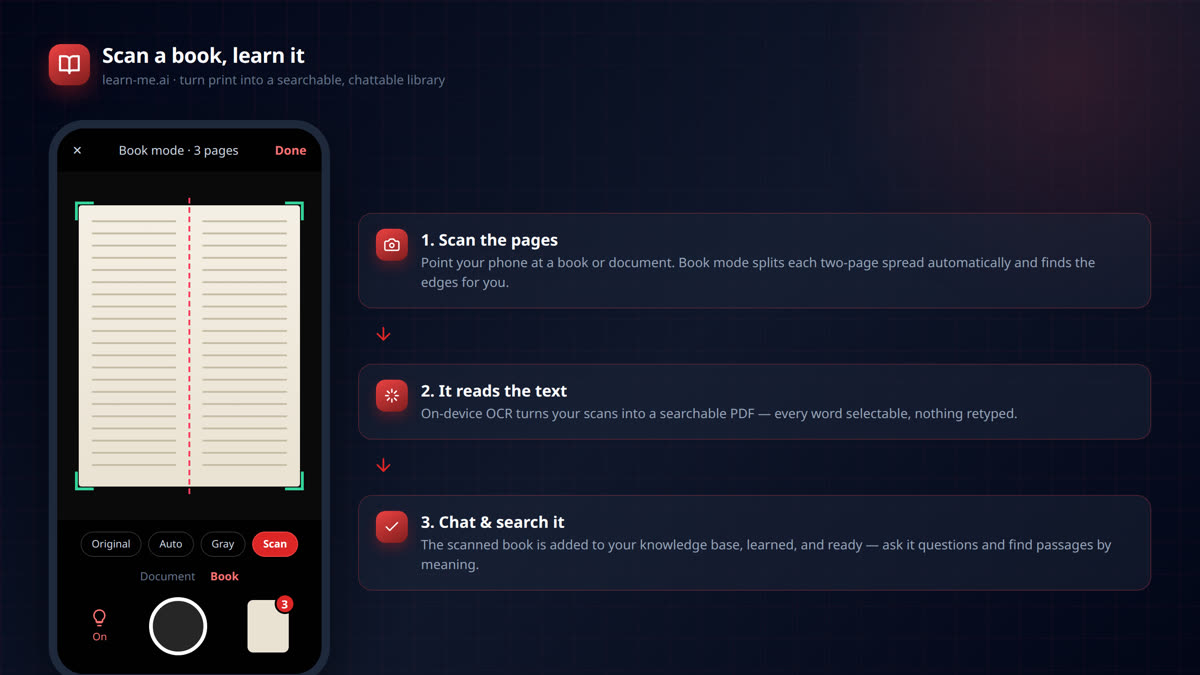
Scan Any Book With Your Phone and Chat With It
Scan any book or document with your phone and turn it into a searchable AI you can chat with. On-device OCR, two-page book mode, and instant learning in learn-me.ai.
Listen to Your Documents: Export Your Work to Audio
Export any document you write in Learn Me AI to a narrated audio file. Turn your research into audio you can listen to on the commute, at the gym, or to proofread by ear. Free to try.