 Learn Me AI
How to Build an Embeddable AI Chatbot and Voice Bot for Your Website (No Code)
An embeddable AI chatbot sounds simple until you try to build one. You need a model, a way to ground it in your own content so it stops making things up, a streaming backend, a styled widget, SDKs for every platform, and — if you want voice — real-time speech on top of all of it. Most teams spend weeks wiring that together before a single visitor asks a question.
This guide shows a faster path. You'll train a bot on your own knowledge base, style it from a dashboard with no code, add voice, and embed it on your website — plus Flutter and React Native apps — with one snippet. By the end you'll have a working, grounded AI chatbot for your website that can also answer out loud as a voice bot. No backend to build, no AI to wire up.
The problem: a grounded chatbot from scratch is hard
Bolting a raw language model onto your site is easy. Making it answer accurately about your product, docs, or policies is the hard part. A model that hasn't been trained on your sources will confidently invent details, and that erodes trust faster than having no chatbot at all.
To do it properly from scratch, you'd need to:
- Ingest and chunk your content, then build a retrieval layer so answers stay grounded in real sources.
- Stand up a backend that streams responses and handles concurrency.
- Build and style a chat widget that matches your brand.
- Add real-time speech-to-text and text-to-speech if you want a voice bot.
- Maintain separate integrations for web, Flutter, and React Native.
- Add guardrails so the bot cites its sources instead of hallucinating.
That's a serious engineering project. The alternative is to treat the chatbot as a product you configure rather than a system you build. With Learn Me AI, you train a bot on your own knowledge base, style it, add voice, and ship it — with no backend to build and no AI to wire up.
Build your first chatbot in about ten minutes
Here's the whole flow end to end. Each step is a screen in the dashboard — no code until the very last step, where you paste one snippet.
Step 1 — Create a free account
Sign up at learn-me.ai. No credit card required. You land in a dashboard where you'll build a knowledge base and a bot.
Step 2 — Build a knowledge base from your sources
Give the bot something to know. Create a knowledge base and add your own material — the bot answers from that instead of guessing. You can add a lot more than plain documents: the same engine can chat with PDFs, audio, web pages, and YouTube, so the sources behind your bot can be as rich as your content library.
- Documents — PDFs, Word, text, slides, spreadsheets.
- Web pages — paste a URL and it pulls in the content.
- Media — audio files and YouTube videos are transcribed automatically.
Step 3 — Create a bot on that knowledge base
Create a bot and point it at the knowledge base you just built. Give it a name and, optionally, a short system prompt describing its role ("You are the support assistant for Acme; be concise and friendly"). That's all it needs to start answering accurately from your sources.
Step 4 — Style it without code
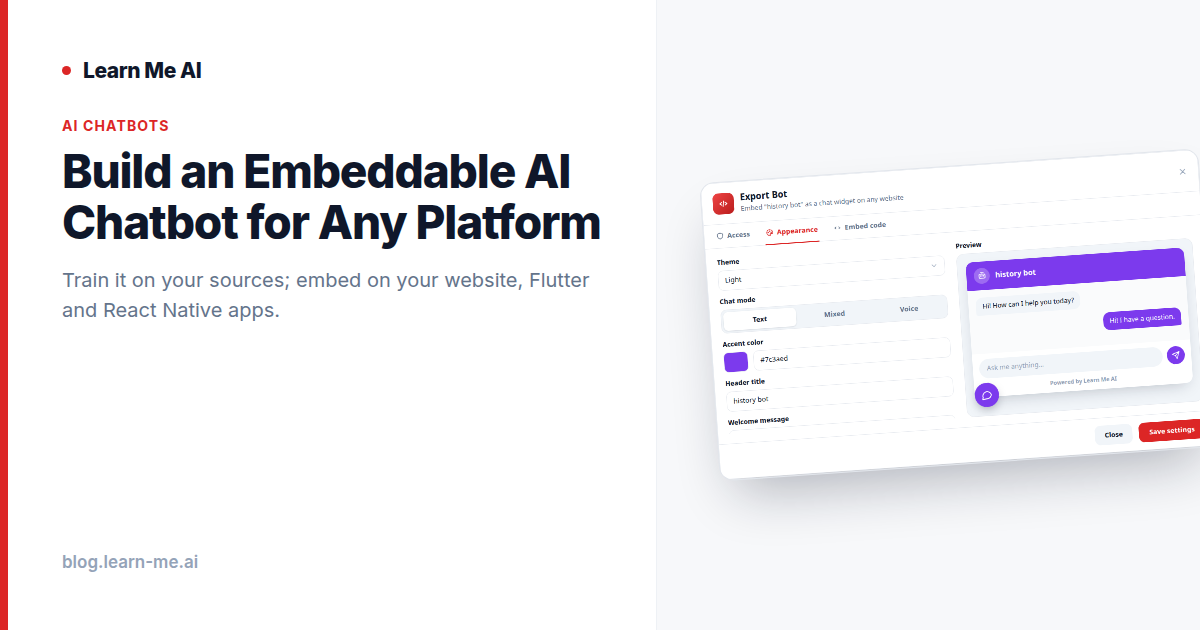
Now make it look like yours. Theme, accent color, header, welcome message, launcher label and icon, and position are all set from the dashboard with a live preview. No CSS, no front-end ticket — you adjust the look, watch it update, and move on. This is the chatbot widget, no code approach: the styling that normally eats developer time becomes a few settings.
Step 5 — Preview and test
Ask it a few real questions right in the preview. Because it answers from your knowledge base, you'll see it pull specifics from your sources — and cite them — instead of improvising. Tweak the system prompt or add a missing source until the answers are right.
Embed it on your website — one script tag
For an AI chatbot on your website, open the bot's Embed panel, copy the snippet, and paste it before your closing </body> tag:
<script
  src="https://learn-me.ai/embed.js"
  data-bot-id="YOUR_BOT_ID"
  async></script>
That's it. The launcher and chat window appear styled the way you configured them, and visitors can start chatting immediately — no account, no build step, no framework lock-in. It works the same on a hand-coded landing page, a WordPress or Webflow site, or a CMS-driven app.
Control who can load it
In the Access settings you can switch embedding on or off and restrict the widget to specific domains, so only your sites can load it. Leave the allowlist empty to allow any domain, or lock it down to your production hostnames.
Turn your chatbot into a voice bot
An embeddable chatbot doesn't have to be a text box. The same bot can talk. In the embed settings you choose the default voice mode, and visitors can switch in-call:
- Text — the classic chat window. Best for support and docs where people want to read and copy answers.
- Text + voice — the bot's answers play as audio and show as live transcripts in the chat. Great when hands-free is convenient but not required.
- Hands-free voice agent — a full voice AI agent that listens and replies out loud, with an animated speaker instead of a transcript. Built for kiosks, in-car, accessibility, and any context where typing isn't practical.
Because the voice bot is grounded in your knowledge base, it stays on-topic and accurate instead of improvising — the same reason the text bot doesn't hallucinate. Visitors tap the mic, ask out loud, and hear an answer drawn from your content.
Where a voice bot shines: reception and kiosk assistants, in-car and hands-busy support, accessibility for users who can't type easily, and any storefront or event where a spoken question is faster than a form.
Ship the same bot to mobile — Flutter & React Native
You train a chatbot on your data once and reuse it everywhere. There's no separate model or content per platform — just a different way to drop it in.
Flutter: a drop-in SDK widget
Add the learn_me_ai_chat package and place the widget anywhere in your tree. It behaves like any other widget, so the chatbot becomes part of your app's UI without you reimplementing chat, streaming, or state:
// pubspec.yaml → dependencies: learn_me_ai_chat

import 'package:learn_me_ai_chat/learn_me_ai_chat.dart';

LearnMeAiChat(botId: 'YOUR_BOT_ID');
React Native: a drop-in component
Install @learn-me-ai/chat and render the component where you want the chat to live:
// npm install @learn-me-ai/chat

import { LearnMeAIChat } from '@learn-me-ai/chat';

<LearnMeAIChat botId="YOUR_BOT_ID" />
Both SDKs wrap the same hosted, grounded bot — the heavy lifting stays on the backend you didn't have to build. (Check each package's README for the latest props.)
Or go fully headless with the chat API
If a pre-built widget doesn't match your design system, go headless. Your page owns every bubble, the mic button, and the audio — no iframe. Load the SDK and create a bot instance:
<script src="https://learn-me.ai/sdk.js"></script>
<script>
  const bot = LearnMeAI.create({ botId: 'YOUR_BOT_ID' });
  // send a message and stream the grounded reply into your own UI
</script>
It's the same endpoint on Web, Flutter, and React Native with streaming responses — you own the pixels, the bot just answers. If you want the bot to do more than answer — look things up, trigger actions, or call your own services — extend it with function-calling tools through the API.
Keep answers accurate and cited
The reason this works as a support or docs bot is grounding. Because the bot answers from your sources rather than general knowledge, responses stay grounded and cited instead of hallucinated. If it doesn't have the answer in your material, it says so instead of inventing one — which is exactly what you want on a page representing your brand.
Remember returning visitors
Optionally, the widget can keep a per-visitor transcript and recall earlier conversations. Pass a stable identifier from your page via window.LearnMeAIUserId, and a returning visitor is greeted in context ("Last time we were looking at pricing — want to continue?") instead of starting cold.
Design advanced conversations
For flows more involved than question-and-answer — qualifying a lead, routing a conversation, branching by intent — design the conversation with a visual conversation flow builder instead of writing prompt logic by hand. Combined with function-calling tools, your bot can hold a real, multi-step conversation and take actions along the way.
Use cases
- Customer support — deflect repetitive questions with accurate, cited answers from your help center; visitors chat (or speak) without signing up.
- Product and developer docs — turn a static docs site into something people can ask questions of directly.
- Lead generation — put a knowledgeable bot on your landing page that answers pre-sales questions the moment interest is highest.
- Voice kiosk / reception — a hands-free voice agent that answers spoken questions at an event, storefront, or front desk.
- Internal team bot — train it on internal handbooks and runbooks so your team gets answers without digging through wikis.
Your build checklist
- Create a free account — no credit card required.
- Build a knowledge base from your sources so the bot has accurate material to answer from.
- Create a bot trained on that knowledge base.
- Style it from the dashboard — theme, accent color, header, welcome message, launcher, and position — using the live preview.
- Choose a mode: text, text + voice, or a hands-free voice agent.
- Set access: enable embedding and, optionally, restrict it to your domains.
- Embed it: paste the script tag on your website, add the Flutter widget or React Native component, or call the chat API for a headless custom UI.
Ten minutes in, you have a branded, grounded chatbot — and a voice bot — live on your site. Start building yours free.
Frequently asked questions
Do visitors need an account to use the chatbot?
No. Visitors chat without signing up. They land on your page or open your app and start asking questions right away.
Do I need to build a backend or wire up an AI model?
No backend to build and no AI to wire up. Training, retrieval, streaming, and hosting are handled for you — you configure the bot and embed it.
Can I use the same bot on web and mobile?
Yes. Train and style the bot once, then embed it via the web script tag, the Flutter SDK widget, the React Native component, or the headless chat API — the same endpoint serves all three platforms with streaming responses.
Can I turn my chatbot into a voice bot?
Yes. The same bot runs as a text chat, a mixed text-and-voice chat, or a fully hands-free voice agent that listens and replies out loud. You pick the mode in the embed settings, and visitors can switch in-call.
How do I make sure answers are accurate and not made up?
Because the bot answers from your knowledge base rather than general knowledge, responses stay grounded in your sources and can cite where they came from, which keeps hallucinations down.
How long does it take to build one?
About ten minutes for a first version: create a free account, add a few sources, create the bot, style it, and paste one script tag on your site.
Try Learn Me AI free
Turn your PDFs, audio, web pages and YouTube videos into one AI you can chat with — get cited answers and publish the result. No credit card needed.
Get started free →Keep reading
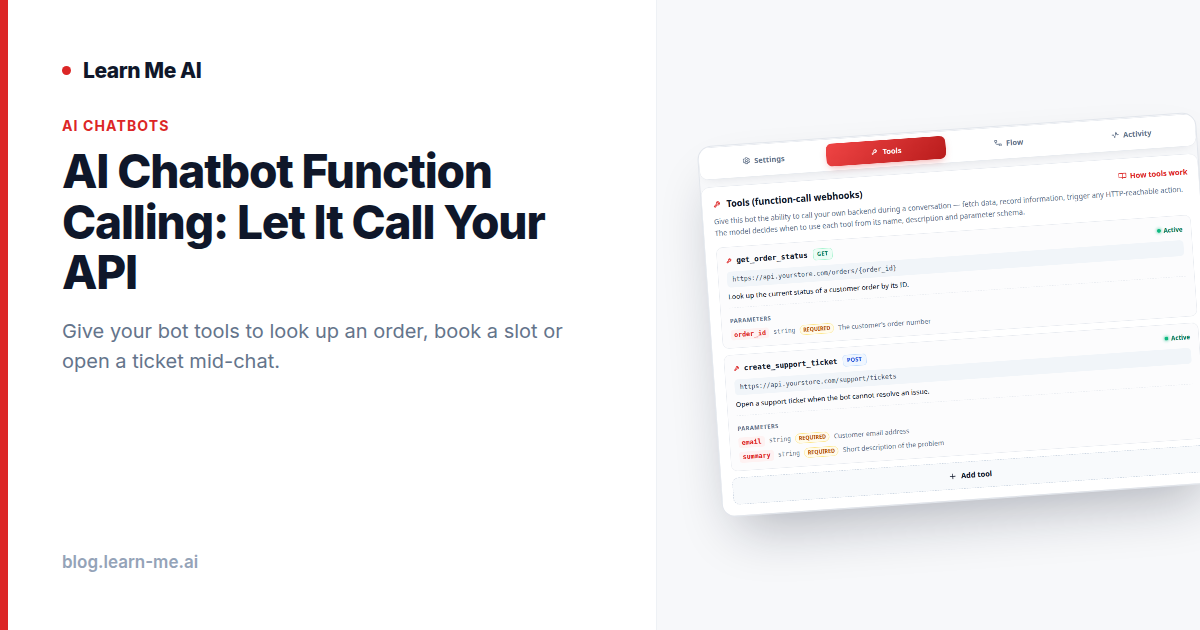
AI Chatbot Function Calling: Let It Call Your API
AI chatbot function calling lets your bot call your own API mid-conversation to look up orders, book slots, and open tickets. Free plan, no credit card.
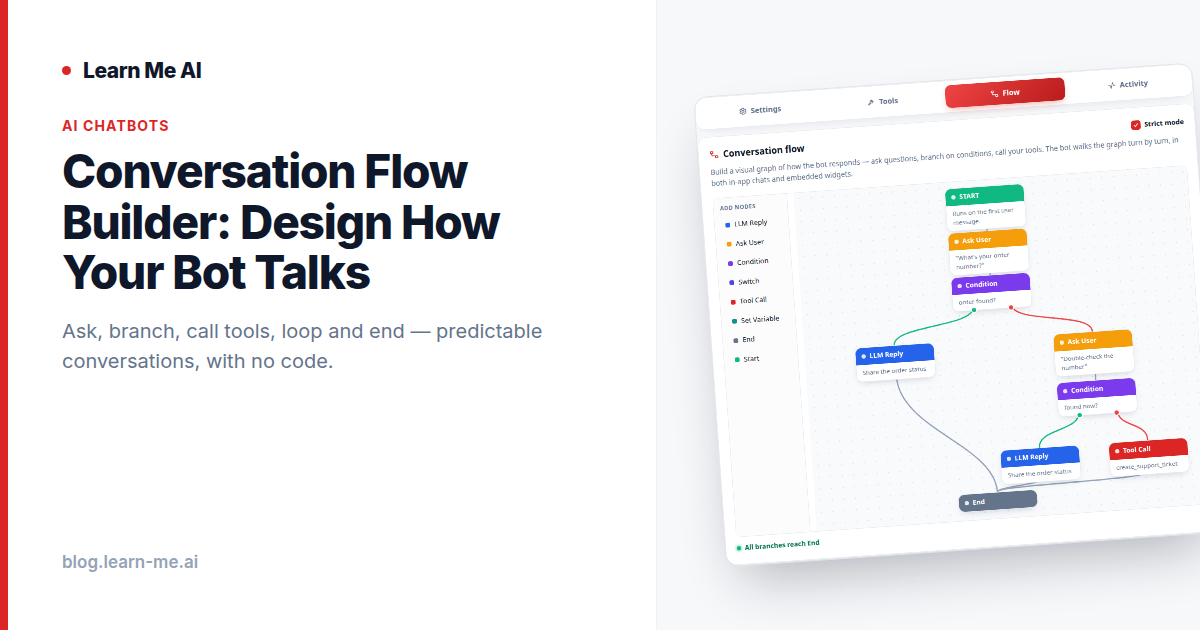
Conversation Flow Builder: Design How Your Bot Talks
A conversation flow builder lets you design exactly how your AI chatbot talks — ask, branch, call tools, loop, and end. No-code, free to start.
The 9 Best NotebookLM Alternatives in 2026 (Free & Paid)
Looking for a NotebookLM alternative in 2026? We compare 9 tools — free and paid — for chatting with your sources, cited answers, and turning research into finished work.